CRM
Contacts
Contacts are the people you sell to and stay in touch with. Everything in Clientt — emails, campaigns, proposals — connects back to a contact.
What you can do
- Create and edit people, and link them to the company they work at.
- See every email thread with a contact in one place.
- Track a buying journey on the Engagements tab, with the emails and meetings linked to it.
- Track where each person sits in your funnel with a lifecycle stage.
- Let the AI assistant enrich a record with details pulled from the web.
Tip — Leads are just contacts at an early stage. When a form is submitted, Clientt creates the contact for you, so there's nothing separate to manage.
app.clientt.com/crm/contacts
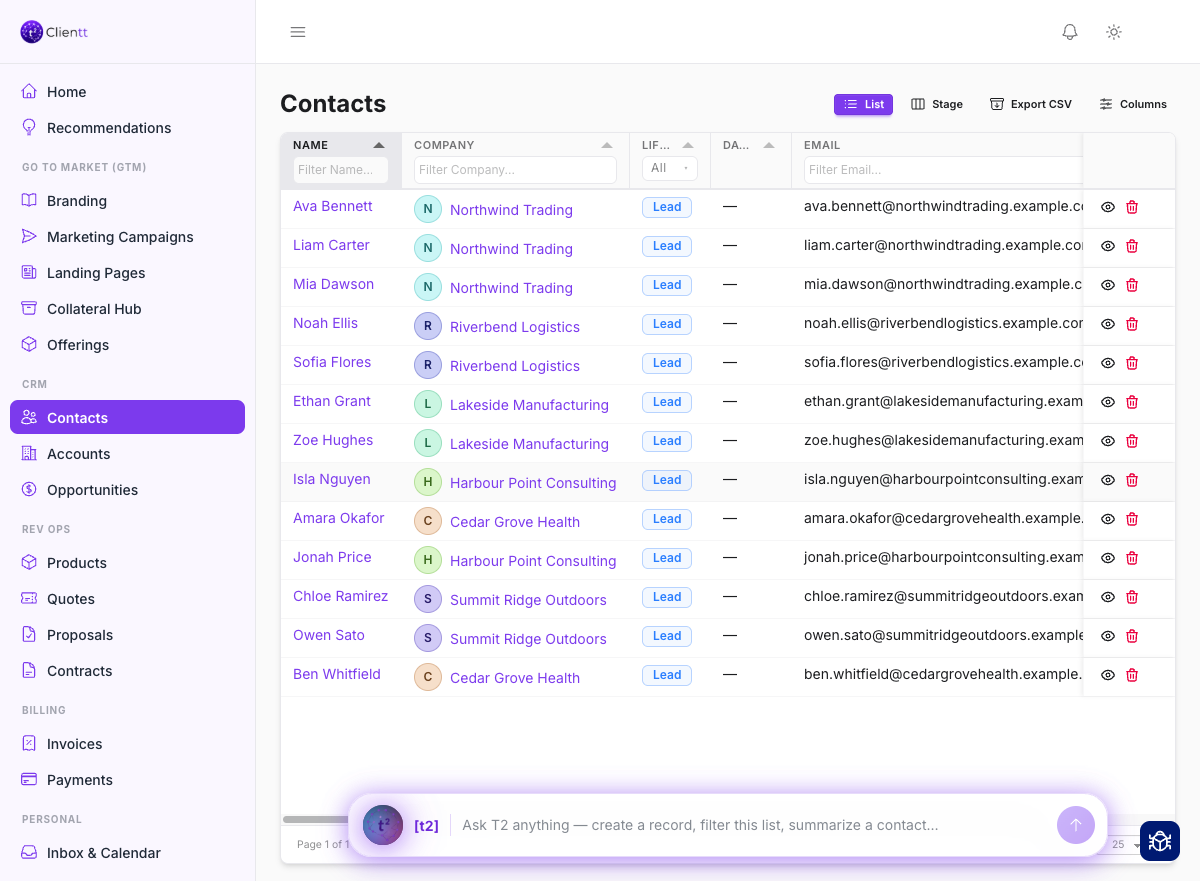
The Contacts list, where you browse, search, and open the people in your CRM.
Creating a contact
You can add a contact two ways — from the CRM, or just by asking the assistant.
- Open Contacts from the left sidebar.
- Choose New contact, or type “add a contact for Jane at Acme” into the T2 assistant.
- Fill in a name and email — everything else is optional and can be enriched later.
- Link the contact to an account to keep company details in sync.
Note — The assistant always shows you a preview card and waits for your confirmation before it saves anything.
Lifecycle stages
Move a contact through stages as the relationship develops — from a new lead to an active customer. Switch to the board view to drag people between stages and see your funnel at a glance.