Admin
Settings & Integrations
Manage your personal preferences, your organization, and the tools Clientt connects to.
Personal settings
Set up the things that are just for you — your profile, how you're notified, your security options, and the tutorials that help you get comfortable with Clientt.
Your organization
Invite team members and set their permissions, edit your organization's details, and set up automations that handle routine work for you.
- Open Settings and go to your organization.
- Invite a team member by email and choose their permissions.
- Edit your organization details so they're up to date.
- Set up automations to handle repetitive work.
Configuration
Fine-tune how Clientt works behind the scenes — pricing and product settings, finance and billing settings, and the message templates and providers used to reach your contacts.
Integrations
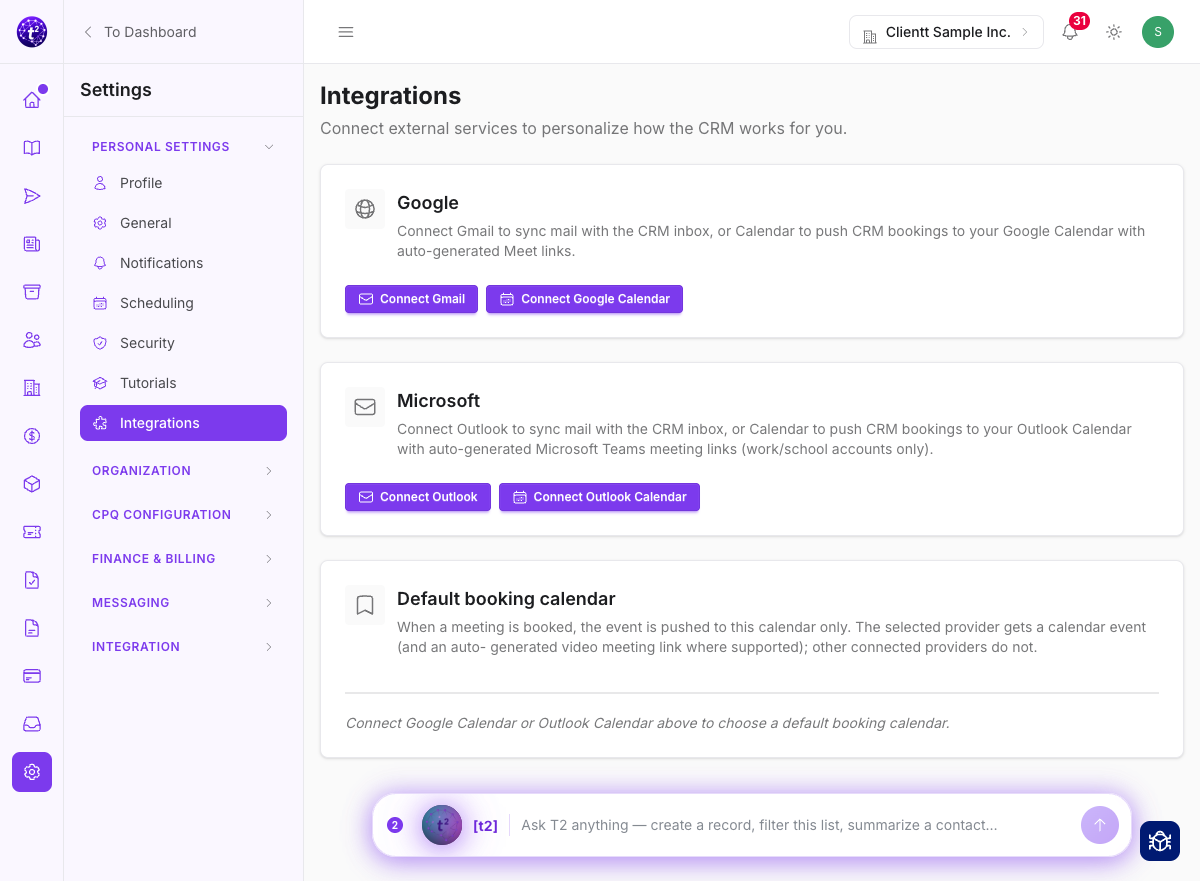
Connect your Gmail or Outlook account so your mail and calendar flow into Clientt — that's what puts your email beside the contact it belongs to in your Inbox, and lets a booked meeting land on your own calendar. Connect the other tools you rely on, like HubSpot, and set up webhooks to keep information moving between Clientt and the rest of your stack.